

Dashboard
Start each day on the Dashboard — KPIs, low-stock warnings, charts, and quick actions for products and stock.
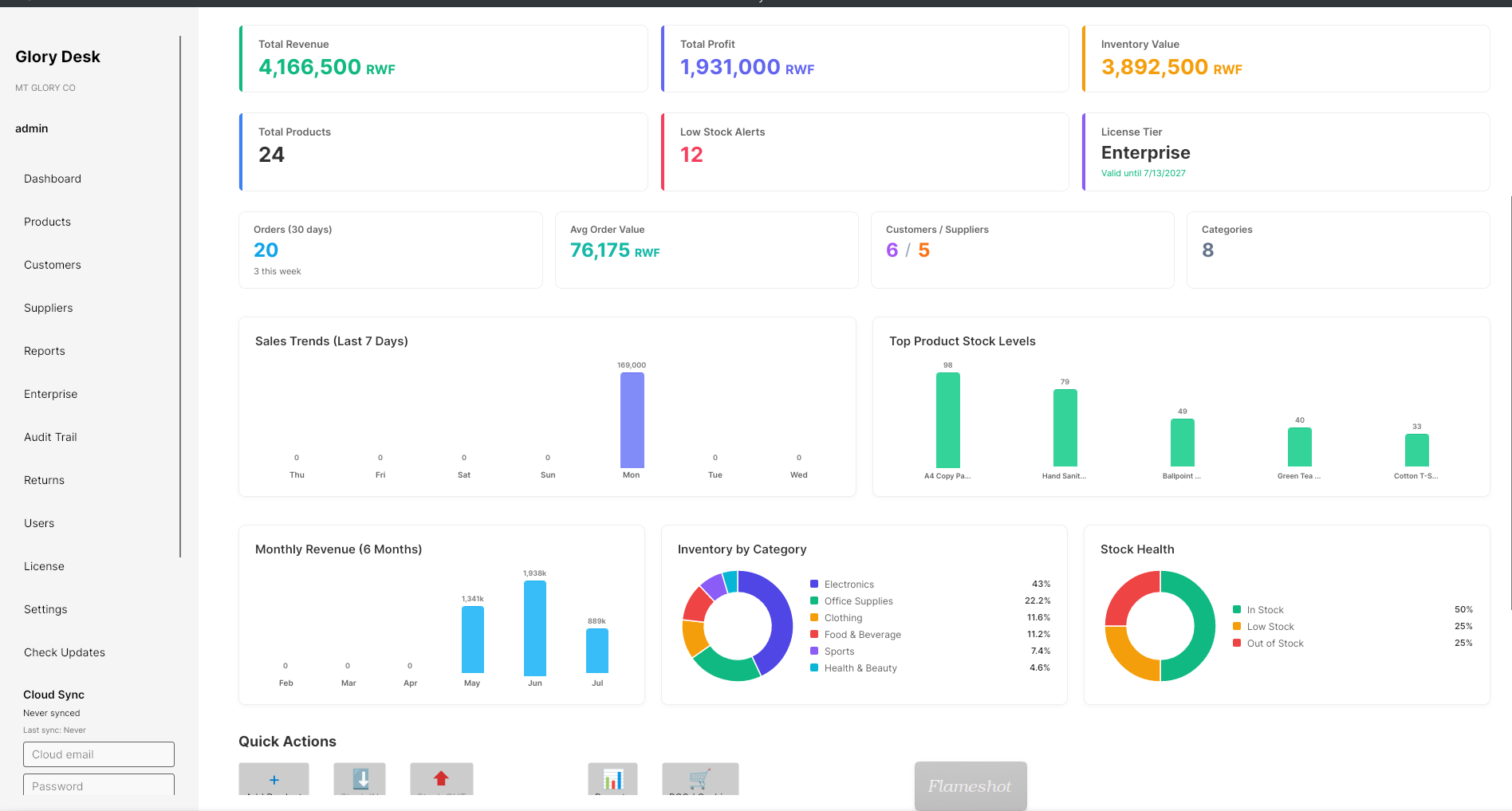
Before you start
- You are logged in
- You can see Dashboard in the left sidebar
- Some profit figures may show LOCKED if your role or tier hides financials
Steps
1. Open Dashboard
- In the left sidebar, click Dashboard.
- Read the welcome line and the subtitle Here's what's happening in your inventory today.
- Optionally click Refresh to reload figures.
2. Read Morning Briefing and alerts
- Check the Morning Briefing section for today’s highlights.
- If you see Low Stock Warning, open Products & Stock or use Quick Actions to restock.
3. Review KPI cards
Typical cards include:
| Card | Meaning |
|---|---|
| Total Revenue | Sales revenue |
| Total Profit | Profit (or LOCKED) |
| Inventory Value | Value of stock on hand |
| Total Products | Product count |
| Low Stock Alerts | Items needing attention |
| License Tier | Your licensed tier |
| Orders (30 days) | Recent order volume |
| Avg Order Value | Average sale size |
| Customers / Suppliers | Partner counts |
| Categories | Category count |
4. Use charts
Scroll to charts such as:
- Sales Trends (Last 7 Days)
- Top Product Stock Levels
- Monthly Revenue (6 Months)
- Inventory by Category
- Stock Health
Use them to spot slow movers and busy days — detailed reports are under Reports (Part 4).
5. Run a Quick Action
In Quick Actions:
| Button | Does |
|---|---|
| Add Product | Opens Add New Product |
| Add Stock | Opens Stock IN |
| Remove Stock | Opens Stock OUT |
| Import Many | Starts bulk product import |
| Reports | Opens Reports |
| Checkout / Cashier | Opens POS (Medium+) |
Add a product from Dashboard
- Click Add Product.
- Fill Product Name, optional SKU, Category, Price, Cost.
- Click Save Action (or Cancel).
Stock IN / Stock OUT
- Click Add Stock or Remove Stock.
- Choose Select Product.
- Enter Quantity and prices/reason as shown.
- Click Save Action.
6. Check Recent Stock Changes
- Open Recent Stock Changes.
- Review columns: #, Product Name, Type, Qty, User, Date.
- Empty state: No recent movements found.
What success looks like
- Dashboard loads without errors
- Low-stock alerts match what you expect
- You can add a product or stock movement from Quick Actions
If something goes wrong
| Problem | What to try |
|---|---|
| Profit shows LOCKED | Normal for some roles/tiers — ask Admin |
| Numbers look stale | Click Refresh |
| Checkout quick action missing / opens License | Need Medium+ — see License tiers |
| Import stuck | Wait for Import Summary, then Dismiss; retry CSV from Products & Stock |