

Money overview
Financial snapshot reports under Reports → category Money Overview.
Before you start
- License Pro or Enterprise — the Reports hub is locked on lower tiers (License tiers)
- Your role allows reports (
ViewReports) - Chart of accounts and journals are set up (Admin → Settings → Accounting)
Open the Reports hub
- Click Reports in the sidebar.
- Page title: Reports & Analytics.
- Under Report Category, choose Money Overview.
- Pick a report under Reports in Category.
What You Own vs Owe
Snapshot of assets, debts, and owner value.
Steps
- Select What You Own vs Owe.
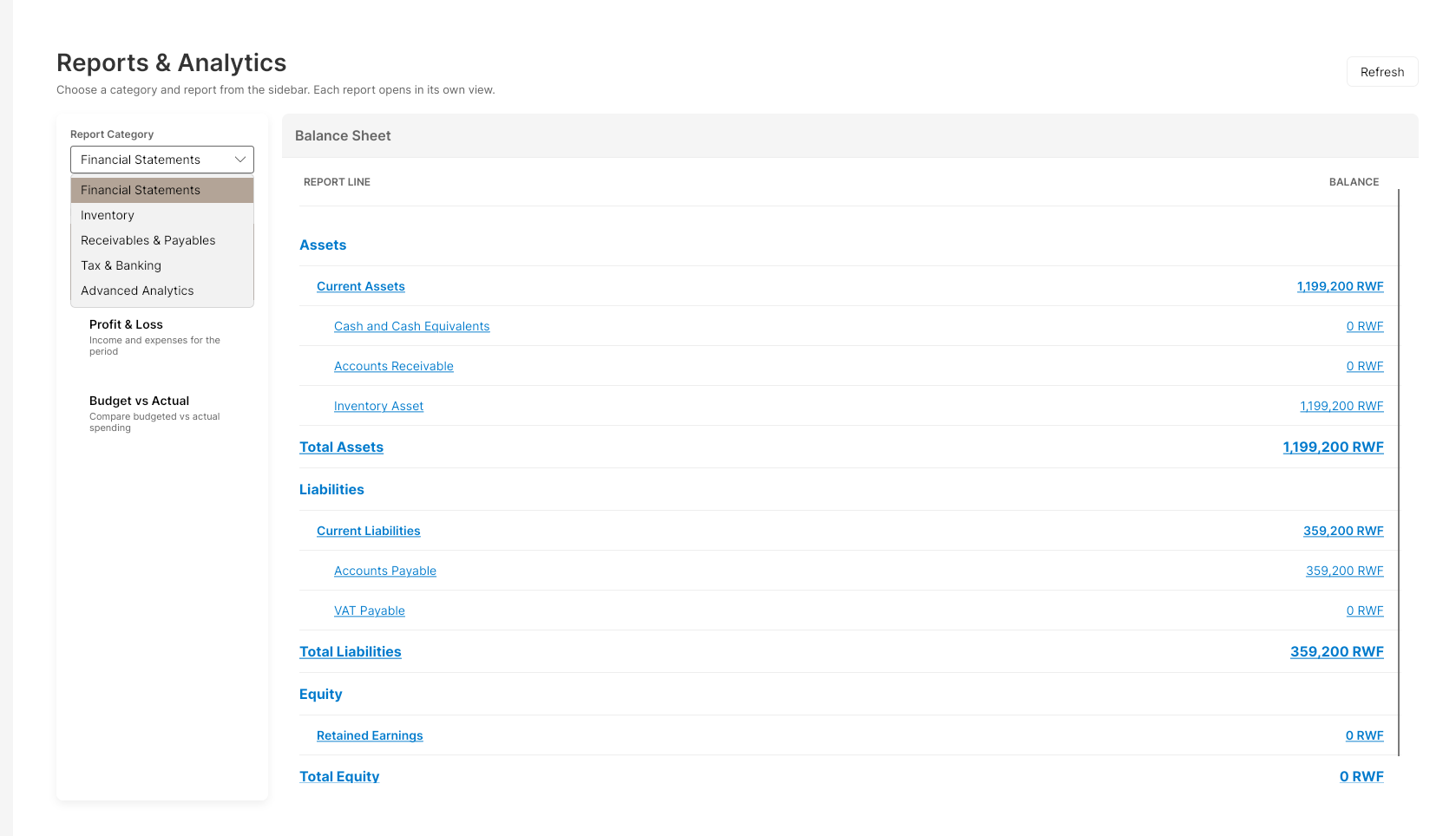
- Loaded screen title: Balance Sheet.
- Click Refresh if needed.
- Read columns REPORT LINE and BALANCE (assets, liabilities, equity).
- Optional: click a computed line to open Journal Entries - {Name} (Date, Journal Entry, Account, Debit, Credit, …). Check Balanced / Unbalanced, then Close.
Income vs Expenses
Money in and money out for the period.
Steps
- Select Income vs Expenses.
- Loaded screen title: Profit and Loss Statement.
- Click Refresh.
- Review revenue, costs, and profit lines in REPORT LINE / BALANCE.
- Drill into journals the same way as the balance sheet if needed.
Account Ledger
Every transaction posted to one account, with running balance.
Steps
- Select Account Ledger.
- Search for an account by name or code (type to search, click Select).
- Optional: set a From / To date range.
- Read Opening Balance and Closing Balance cards.
- Review the grid: Date, Entry #, Reference, Label, Debit, Credit, Balance (running total).
If you scope the date range, anything before From is folded into Opening Balance rather than dropped, so the running balance inside the visible range still ties out correctly.
Budget vs Reality
Compare planned spending to what actually happened.
Steps
- Select Budget vs Reality.
- Screen title looks like Budget vs Actual — FY {year}.
- Set Fiscal Year and Month (0 = annual).
- Click Load Report (or Refresh).
- Read summary cards: Total Budget, Total Actual, Total Variance.
- Review grid: Code, Account, Type, Budget, Actual, Variance, Var %.
What success looks like
- Balance sheet / P&L lines show sensible totals
- Journal drill-down opens without errors
- Account Ledger running balance matches what you expect for that account
- Budget report loads for the year/month you chose
If something goes wrong
| Problem | What to try |
|---|---|
| Reports opens License | Upgrade to Pro/Enterprise |
| Empty balances | Post sales/purchases/journals first; check Accounting settings |
| Budget empty | Enter budgets in Settings / accounting setup for that fiscal year |