

Activate your license
Each Glory Desk license is RSA-signed and bound to one computer. You copy the Hardware ID from the desktop app, request a key on the website, then paste the key back into the app.
Before you start
- Glory Desk is installed and opens to Glory Desk License
- You know which tier to request (Basic, Medium, Pro, or Enterprise)
- You have a business email inbox (or your admin will receive the key)
- This PC is the one you will use day to day
What you will see on the License screen
The desktop screen is titled Glory Desk License.
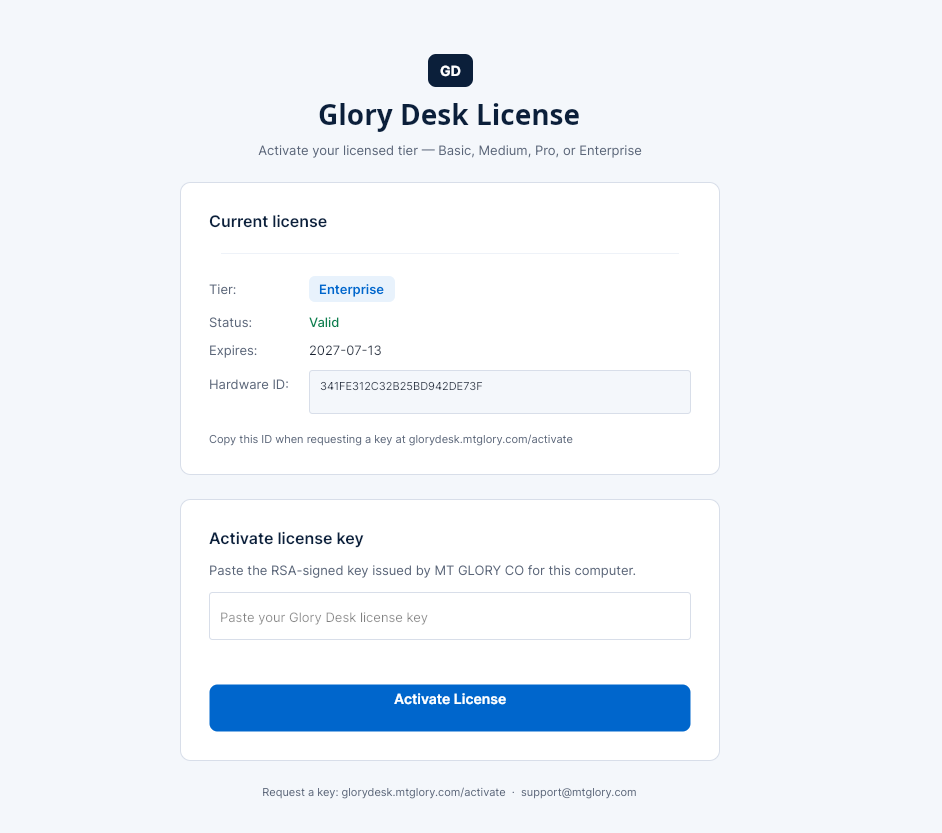
Current license block shows:
| Label | Meaning |
|---|---|
| Tier: | Often Activation Required until a key works |
| Status: | License status text |
| Expires: | Date, or N/A - Product Locked when locked |
| Hardware ID: | Long read-only ID for this PC |
Hint under the ID: Copy this ID when requesting a key at glorydesk.mtglory.com/activate
Activate license key block shows:
- Watermark field: Paste your Glory Desk license key
- Button: Activate License
- After success: green button Continue to Glory Desk
Footer reminder: Request a key: glorydesk.mtglory.com/activate · support@mtglory.com
Steps
1. Copy your Hardware ID from the app
- Open Glory Desk.
- Stay on Glory Desk License.
- Find Hardware ID: (read-only box).
- Select the full ID text and copy it (Ctrl+C).
- Paste into Notepad temporarily so you do not lose it.
The key MT GLORY issues is tied to this Hardware ID. A key for another PC shows Hardware Mismatch.
2. Open the license request page
- On the same PC (or any device), open glorydesk.mtglory.com/activate.
- You should see License activation and the form Request a license key.
- Optional: open from Pricing with a tier pre-selected, for example Activate — Pro. You can also use
?tier=Basic,Medium, orEnterprise.
3. Submit the request form
Fill every field exactly:
| Field on the website | What to enter |
|---|---|
| Business email | Inbox you monitor |
| Company / shop name | Legal or trading name |
| License tier | Basic / Medium / Pro / Enterprise (prices shown in the list) |
| Hardware ID (from desktop app) | Paste the full ID from step 1 |
- Click Submit license request.
- Wait for the success message on the page (request received).
- Do not close the desktop app permanently — you still need to paste the key later.
Alternative: email support@mtglory.com with company name, tier, and Hardware ID.
4. Receive your license key
- Watch email (and spam) for MT GLORY / Glory Desk.
- Or sign in to the customer portal → Your licenses when your account shows an issued key.
- Copy the entire key string — do not trim characters or add spaces.
Issuing is a manual / admin step. Allow business hours for turnaround on launch week unless you were told otherwise.
5. Activate inside the desktop app
- Return to Glory Desk License.
- Click the field Paste your Glory Desk license key.
- Paste the full key (Ctrl+V).
- Click Activate License.
- Wait for a success line such as: Success! {Tier} license activated.
- Confirm Tier and Status update under Current license.
- Click Continue to Glory Desk.
You should move to the Login screen (Glory Desk — Sign in to your business desk).
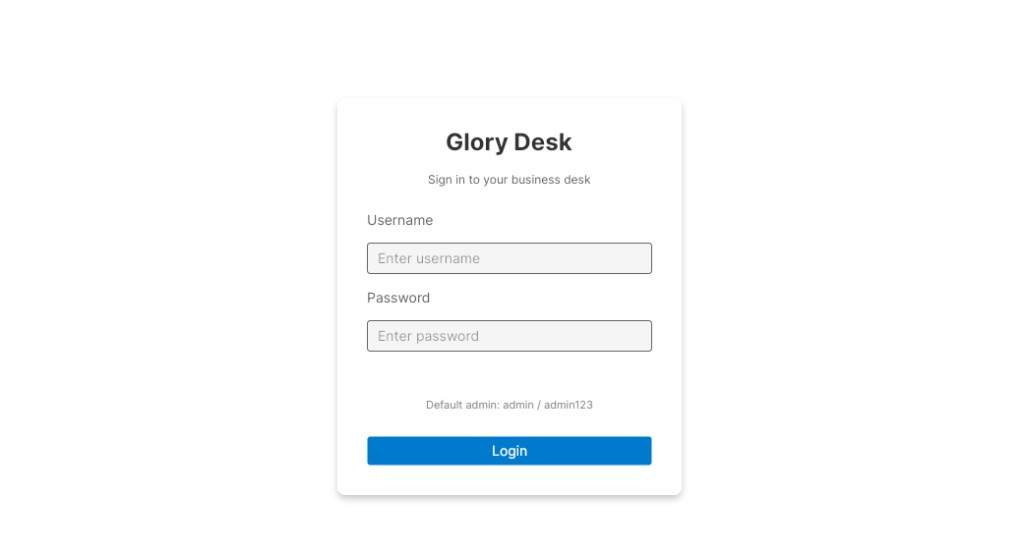
What success looks like
- Activation message confirms success
- Continue to Glory Desk is visible and works
- Login screen appears
- Later, License in the sidebar still shows your tier and expiry
If something goes wrong
These messages come from the desktop app:
| Message you see | Meaning | What to do |
|---|---|---|
| Please enter your license key. | Field empty | Paste the key, then click Activate License |
| Hardware Mismatch: This key is for another computer. | Key bound to another Hardware ID | Request a new key with this PC’s Hardware ID |
| Invalid Signature: The key has been tampered with or is fake. | Key corrupted or not genuine | Re-copy from email/portal; contact support if it still fails |
| Invalid Format: Not a valid license key string. | Incomplete / wrong paste | Paste the full key with no extra line breaks cut off |
| This license key has expired. | Key past expiry | Contact support to renew / reissue |
| Activation failed. Please check your key. | Other failure | Retry once; then email support with Hardware ID + screenshot of the message |
Website / process issues:
| Problem | What to try |
|---|---|
| Form submit error | Check internet; retry; email support with the same details |
| No key after 1–2 business days | Reply to your request or email support with company + Hardware ID |
| Portal empty | Key may only be emailed; ask support to issue / attach to your account |
| Accidental request for wrong tier | Email support before you activate; do not activate the wrong key if avoidable |
Tips
- Activate on the final shop PC, not a temporary laptop, unless you accept EULA transfer rules.
- After activation you can reopen License anytime from the sidebar to re-check status.
- Keep a secure copy of the issued key for your records (password manager / locked folder).