

Install on Windows
Download the official Glory Desk installer and put the app on your computer. Use only MT GLORY / official GitHub release links.
Before you start
- Windows 10 or 11, 64-bit
- About 500 MB free disk space (more while downloading)
- At least 4 GB RAM recommended
- Ability to run an
.exeinstaller (you may need an Administrator account) - A browser and internet connection
Steps
1. Open the official download page
- Open your browser.
- Go to glorydesk.mtglory.com/download.
- Confirm you see Download Glory Desk and a Windows version (e.g. 1.2.0).
2. Download the installer
- Click Download Glory Desk (main button on the download page).
- Save the file — typical name:
GloryDesk_Setup_v1.2.0_Windows.exe(version may differ). - Wait until the download reaches 100% and the file size looks complete (roughly ~100 MB class; check the page for the stated size).
Optional: browse GitHub releases if you need an older build. For launch day, use Latest.
3. Run the installer
- Open your Downloads folder.
- Double-click the Glory Desk
.exe. - If Windows SmartScreen appears:
- Click More info
- Click Run anyway
Only do this for the file you downloaded from the official Glory Desk / GitHub release.
- Follow the installer screens (accept the license agreement, confirm the install folder if asked).
- Click through until setup says it finished.
- Leave Launch Glory Desk checked if offered, or finish and open it from the Start menu next.
4. Open Glory Desk from the Start menu
- Click the Windows Start button.
- Type Glory Desk.
- Click the Glory Desk app.
5. Confirm the first screen
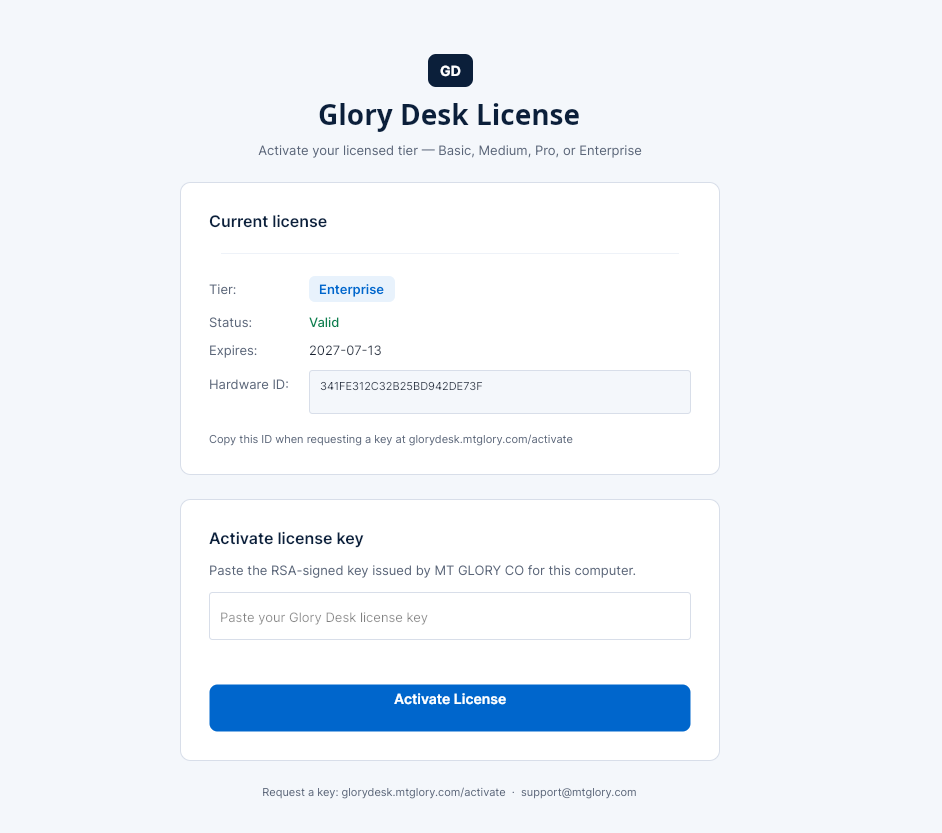
On a new PC you should see Glory Desk License with:
- Title: Glory Desk License
- Subtitle about activating Basic, Medium, Pro, or Enterprise
- Section Current license (Tier, Status, Expires, Hardware ID)
- Section Activate license key
That means install succeeded. Continue to activation.
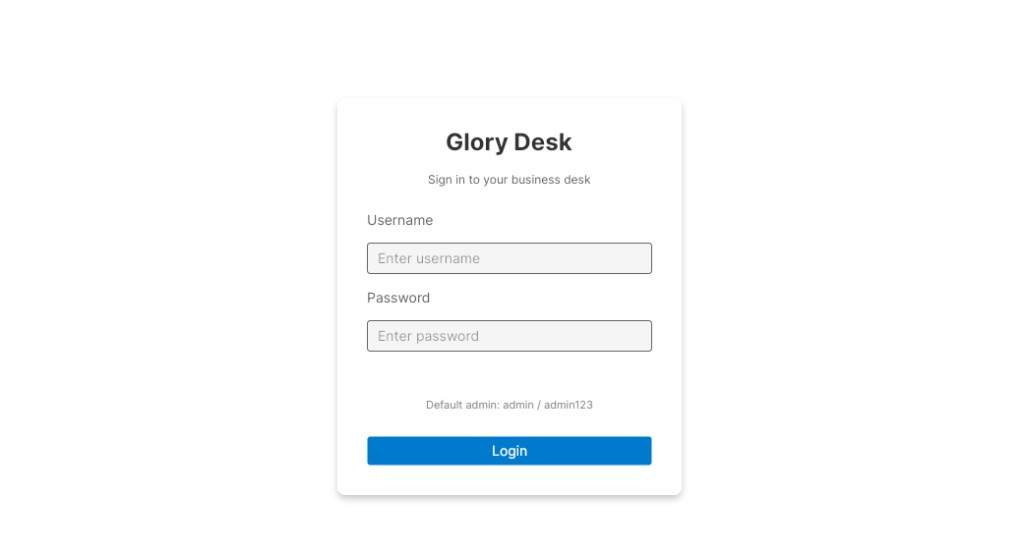
After a successful activation you reach Login:
What success looks like
- Glory Desk appears in the Start menu
- The app opens without a crash
- You see the Glory Desk License screen (or Login if this PC was already activated)
If something goes wrong
| Problem | What to try |
|---|---|
| Download never finishes | Retry on a stable connection; use the GitHub Latest release asset directly |
| SmartScreen blocks the file | Use More info → Run anyway only for the official build; re-download if the file looks truncated |
| “Windows protected your PC” / unknown publisher | Confirm the URL was glorydesk.mtglory.com or github.com/mtgloryco/glorydesk — then retry |
| Installer needs admin rights | Right-click the .exe → Run as administrator |
| App missing from Start menu | Re-run the installer; check the install folder you chose |
| App opens then closes | Note any error text, email support@mtglory.com with Windows version and installer filename |
| Antivirus quarantined the file | Restore from quarantine or allow the official installer, then reinstall |
Tips
- Keep the installer file until activation succeeds — useful if support asks which build you used.
- Read what shipped in your version on Releases.
- Later, use Check Updates inside the app to get new builds.
Related
- Activate your license — next required step
- License tiers
- Download page
- Release notes
- GitHub releases
- EULA